In briefChoose a simulator by what you need to check, not by how familiar its chart looks. Confirm the simulated destination, exact instrument and order units before rehearsing submission, amendment and cancellation.
The difference is where the simulated order goes
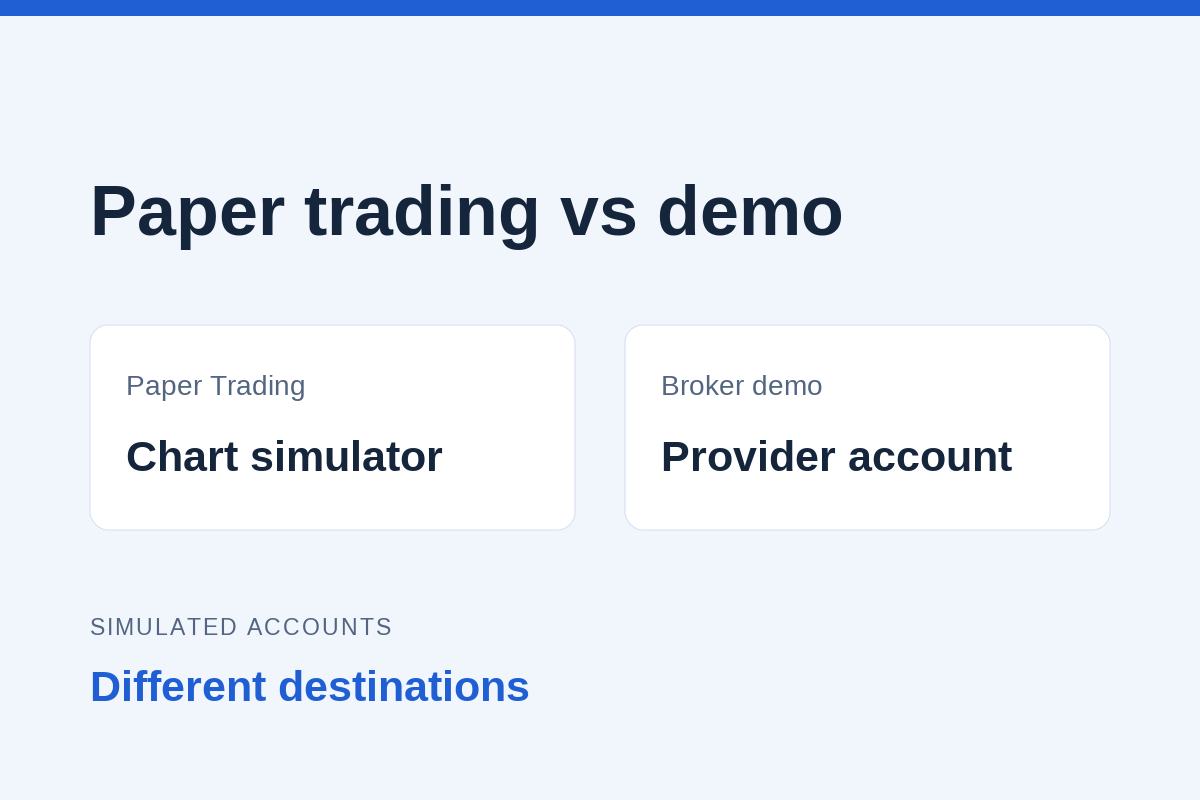
TradingView Paper Trading is a platform-native simulated trading destination; a broker demo is a provider’s simulated account, accessible through TradingView only where the integration offers that option. They are not interchangeable simply because both can appear alongside charts. Paper Trading suits a rehearsal of the platform’s simulated workflow, while a provider demo lets you examine the particular demo connection offered. Neither should be confused with a live account, and a broker’s presence on TradingView does not establish that its demo is available there.
The useful comparison is therefore not which simulator is universally better, but which destination answers your question. Are you learning how to read an order ticket, or checking how a particular provider’s demo represents an instrument and its orders? Those are different exercises. A successful platform-native rehearsal does not establish that a provider integration uses the same symbol, quantity convention, account settings or order controls. Treat each destination as a separate environment requiring its own checks.
This guide separates those documented distinctions from hypothetical examples used to explain them. Any sample quantity, balance or workflow below is illustrative, not a statement about a named broker’s settings. The practical starting point is an unfunded order-ticket rehearsal in a clearly identified simulated environment. Do not connect a live account merely to discover what a ticket looks like, and do not assume that a familiar chart confirms which account will receive an order.
For broader platform context, use the forex platforms comparison to frame your questions, while checking the actual simulated destination separately.
Confirm the account before comparing features
Start with the account connection, not the order button. Identify whether the selected destination is TradingView Paper Trading or an explicitly labelled provider demo. For a provider demo, check that the integration actually offers access to that demo rather than assuming that a separately available demo account can connect. Demo availability is not universal. If the connection choices do not establish a simulated route, stop the rehearsal instead of selecting a live connection as a substitute.
Next, examine the balance and account labels visible in that destination. Record the displayed account currency, simulated balance and any settings relevant to your comparison. A balance is part of the simulation’s starting conditions, not evidence of funding or future results. If two destinations show different starting balances, their monetary outcomes are not directly comparable without acknowledging that difference. Do not assume that changing or resetting a balance is possible everywhere; inspect the controls actually offered.
A hypothetical comparison notebook might record destination A as platform-native Paper Trading and destination B as a provider demo explicitly offered through its integration. Leave any unverified field marked unknown. That is more useful than filling gaps with expectations from another platform. Keep the rehearsal unfunded and confirm the destination again before submitting a simulated order, particularly after moving between account connections or returning to a workspace.
When considering different practice environments, the forex demo accounts guide provides a related comparison route; it does not replace checking whether a particular TradingView integration offers demo access.
Rehearse one ticket without a live connection
Confirm the selected connection is simulated, not live.
Check the exact instrument and the ticket’s quantity unit.
Read the order details and any displayed commission information.
Submit only in the simulator, then inspect amendment, cancellation and history.
Match the tradable symbol, not just the chart label
TradingView documents a non-tradable-symbol error when trading through a connected broker. The important lesson is that finding a chart does not establish that the connected destination accepts orders for that exact symbol. Symbol mapping belongs in the comparison because a platform’s chart universe and the instruments available through a particular connection are not the same question. Read the full instrument identity rather than relying only on a familiar currency-pair abbreviation.
For a hypothetical example, imagine opening a chart labelled EUR/USD and then selecting a provider demo. Before entering an order, check whether that connection recognises the chart’s exact symbol or requires a corresponding instrument available through the provider. Do not infer interchangeability from similar names. If a non-tradable-symbol message appears, investigate the supported instrument selection instead of treating the error as proof that every EUR/USD chart, or the entire demo account, is unusable.
A chart quote is also not proof of an executable price. Keep the displayed chart value separate from whatever price information the simulated ticket presents and from the price recorded after simulated execution. If those values differ, note where each came from before drawing a conclusion. The evidence here does not support promising that either simulator reproduces a live executable price or a particular execution outcome. The rehearsal establishes what that simulated environment displays and records.
If selecting an integration is part of your research, consult the TradingView forex brokers comparison with separate questions for chart access, tradable symbols and explicitly supported demo connections.
Compare balances, quantity units and commissions
Once the symbol is confirmed, read the quantity field before typing into it. Position units are a core comparison point: the same numeral is not enough to establish the same intended size when the labels or instrument specifications differ. Record the field’s unit and any explanation supplied by the destination. If its meaning is unclear, leave the order unsubmitted. Guessing at units defeats the purpose of an otherwise controlled simulated rehearsal.
For example, suppose two hypothetical tickets both contain the number 10. Without knowing what each quantity field measures, you cannot conclude that the orders represent matching positions. The appropriate next action is to inspect their labels and instrument details, not to calculate an assumed equivalence. Likewise, compare account balances only after identifying their currencies. Keep quantity, account currency and displayed monetary values in separate notebook fields so that a familiar-looking number does not hide a different meaning.
Commissions require the same discipline. Inspect any commission settings, estimates or recorded charges that the environment exposes, and distinguish a pre-order indication from a post-order entry. Do not assume a blank field means a universal absence of charges, or that one simulator’s configuration describes another destination. Where the information is unavailable, record that limitation. The aim is to understand the simulation’s accounting presentation, not to turn its figures into a forecast of live trading costs.
| Check | Record for each simulated destination |
|---|---|
| Balance | Account currency, displayed amount and relevant visible settings |
| Position size | Quantity entered and the exact unit label |
| Commission | Visible setting or estimate, then any recorded charge |
| Unknown information | What is missing and what needs clarification before submission |
A compact comparison sheet: record observations rather than assumed equivalence.
Rehearse the order lifecycle, not just submission
A useful comparison continues after the first simulated submission. Inspect where the destination shows an outstanding order and which edit or cancel controls are available for that order in its current state. Do not assume identical controls across connections or order types. Before attempting an amendment, identify the value you intend to change and read the resulting status. A click is an action request; the displayed outcome is what you need to verify.
In a hypothetical rehearsal, you might submit a simulated order intended to remain pending, inspect whether its price can be amended, and then request cancellation. This is a test sequence, not a promise that a chosen order will stay pending or that every connection supports the same amendments. If the order executes in the simulator before cancellation, record that outcome instead of treating it as a successful cancellation. Order state matters when interpreting which controls remain relevant.
Finish by checking history rather than relying on memory. Look for the order’s identifying details, any visible amendment or cancellation record, and the resulting position or transaction entries where provided. Compare what the ticket showed with what the history actually preserves. If an event or charge is not visible, note the gap rather than assuming it occurred in a particular way. This creates a concrete account of the simulated workflow without claiming that its records predict live execution.
For the terminology behind the ticket, read the forex order types guide and then check which choices the selected simulated destination actually offers.
Keep replay, paper execution and live trading separate
Replay, simulated order execution and live trading answer different questions. Reviewing a market sequence is not, by itself, proof that an order was submitted to a simulated account. Equally, an entry in simulated account history is not a live trade. Label your notes by activity: chart review or replay, Paper Trading, provider demo, or live. For this comparison, stay within the simulated categories and avoid using a live connection to fill an information gap.
A chart price, a price shown on a ticket and a simulated fill are three different observations. A gap between any two of them is not evidence of how a live order would have executed. Save the timestamps, quote side and instrument for each price so you can tell whether the gap even compares like with like.
Use the forex slippage explainer for related terminology, without treating simulated price differences as proof of a live execution outcome.
Three activities, three different checks
Check what market sequence you are reviewing; do not infer an account order.
Check the selected simulator and its actual order records.
A separate activity, not required for this unfunded rehearsal.
Choose by the question you need answered
Choose platform-native Paper Trading when your immediate question concerns that simulated workflow. Consider a provider demo when your question concerns that provider’s offered demo connection, after confirming that the integration supports it. Neither choice removes the need to inspect symbols, balances, quantity units, commissions and order records. A simulator is useful here because it makes those details available for examination, not because its appearance establishes equivalence with another account.
End with a short written comparison: what destination was selected, which exact symbol was accepted, what the quantity meant, which order changes were possible, and what history retained. Mark unresolved details explicitly. If your original question remains unanswered, seek clarification about that demo environment rather than funding an account or switching to live trading as an experiment. The strongest result is a clear understanding of the ticket and its limits, not a simulated profit figure.
For the broader boundary between practice and real-money environments, continue with demo versus live trading accounts. Keep that distinction separate from the narrower choice between two simulated destinations.